 PecaShelf
Your folders, exactly as you arranged them.Thư mục của bạn, đúng như bạn đã sắp.
Browse the library the way it sits on disk: a folder tree, sub-folders as tiles, per-folder views and statistics, and tools to tidy, move and rename folders.Duyệt thư viện đúng như trên ổ đĩa: cây thư mục, thư mục con dạng ô, kiểu xem và thống kê riêng từng thư mục, cùng công cụ dọn, chuyển và đổi tên thư mục.
With ProVới Pro
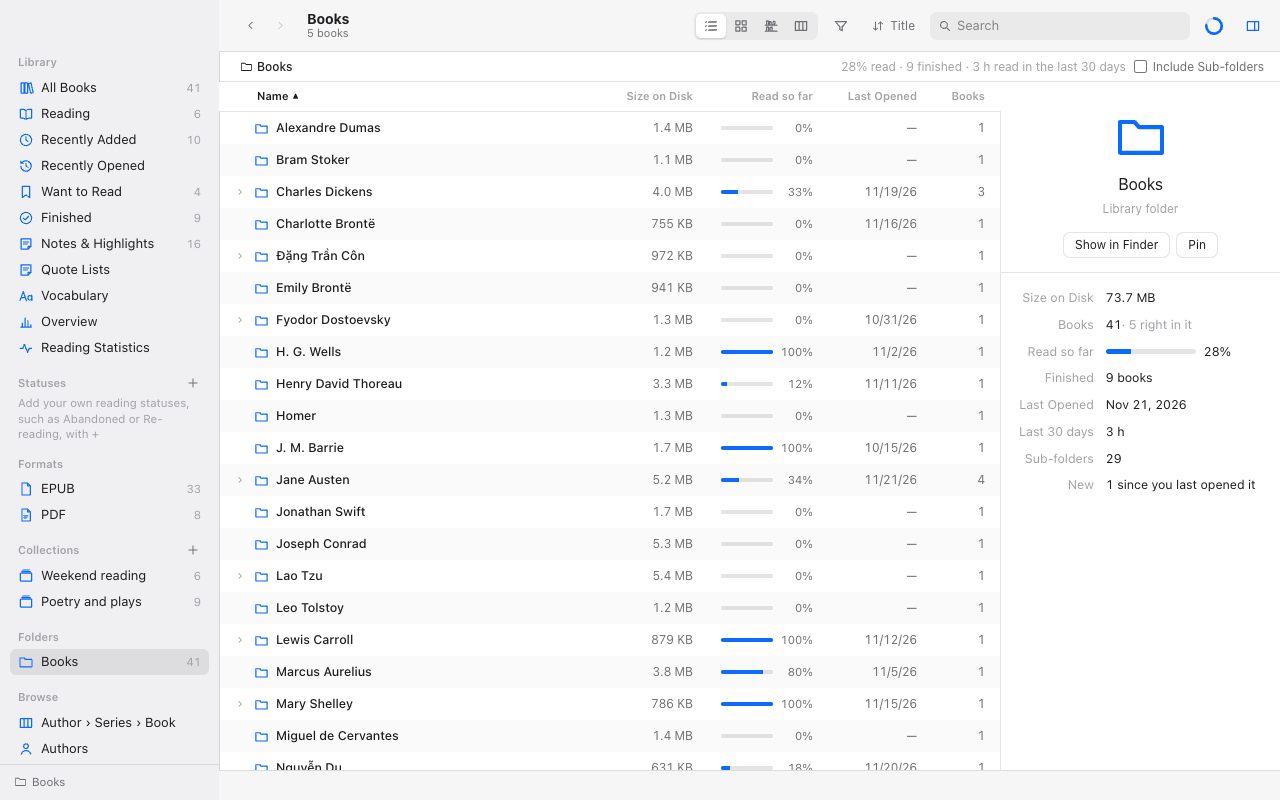
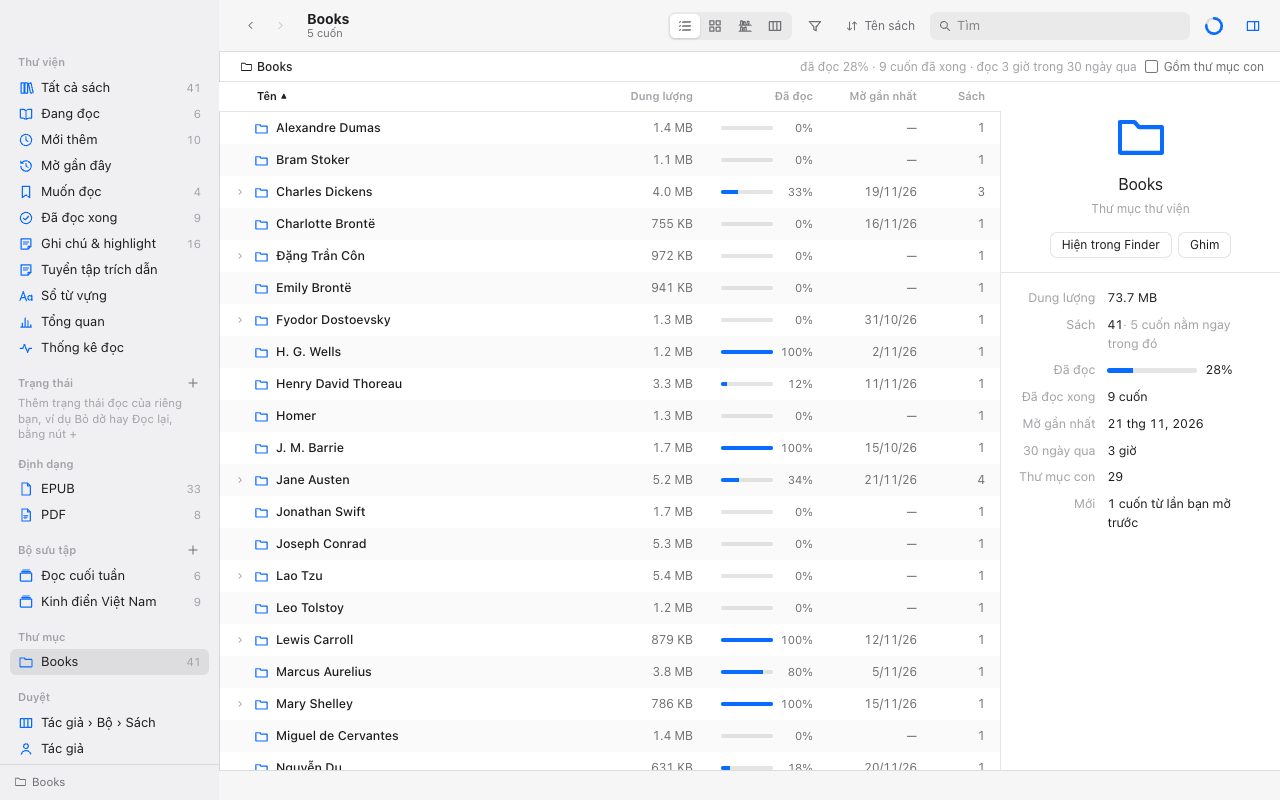
- Browse by folderDuyệt theo thư mục — Browse your library the way it is on disk, like Finder: each library folder and your pinned and recent folders in the sidebar, sub-folders and books side by side as a list, covers, a shelf or columns, and the details of a folder in the inspector.Duyệt thư viện đúng như trên đĩa, giống Finder: mỗi thư mục thư viện cùng các thư mục ghim và gần đây ở thanh bên, thư mục con và sách cạnh nhau dạng danh sách, bìa, kệ hoặc cột, và thông tin của thư mục trong bảng thông tin.
- Folder treeCây thư mục — Collapse and expand folders in the Folders list, move through them with the arrow keys, and find them as you left them next time.Gập và mở thư mục trong danh sách Thư mục, đi qua chúng bằng phím mũi tên, và lần sau mở lại vẫn thấy như lúc bạn để.
- Folders with or without sub-foldersThư mục có hoặc không gồm thư mục con — Show only the books right in a folder, or include everything in its sub-folders. Remembered for each folder.Chỉ hiện sách nằm ngay trong một thư mục, hoặc gồm mọi thứ trong các thư mục con. Được nhớ riêng cho từng thư mục.
- Show in FolderHiện trong thư mục — Jump from a book to the folder its file is in, with the book selected, or show any library folder in Finder.Đi từ một cuốn sách tới thư mục chứa tệp của nó, với cuốn sách được chọn sẵn, hoặc hiện bất kỳ thư mục nào của thư viện trong Finder.
- Back, Forward and the folder pathQuay lại, Tiến tới và đường dẫn thư mục — Go Back and Forward through the places you opened in the Library window (⌘[ and ⌘]), and climb a folder's path with one click.Quay lại và Tiến tới qua những nơi bạn đã mở trong cửa sổ Thư viện (⌘[ và ⌘]), và lên các cấp của đường dẫn thư mục chỉ với một lần bấm.
- Exclude foldersLoại trừ thư mục — Keep folders such as Downloads or drafts out of your library. Scans skip them; the files stay on disk and the books come back with their history when you include the folder again.Để các thư mục như Tải về hay bản nháp ra khỏi thư viện. Lần quét sẽ bỏ qua chúng; tệp vẫn nằm trên đĩa, và sách quay lại cùng lịch sử đọc khi bạn đưa thư mục vào lại.
- Sub-folders as tilesThư mục con dạng ô — Inside a folder, its sub-folders appear above the books as tiles showing four covers each, so you can go down the way you would in Finder.Trong một thư mục, các thư mục con hiện phía trên sách thành những ô ghép bốn bìa, để bạn đi xuống từng cấp như trong Finder.
- Collections from foldersBộ sưu tập từ thư mục — Turn a folder into a collection in one click: a plain one with the books there now, or a smart one that keeps following the folder. Smart collections can also use the rule “Folder is inside”.Biến một thư mục thành bộ sưu tập chỉ với một lần bấm: bộ sưu tập thường chứa các sách đang có ở đó, hoặc bộ sưu tập thông minh luôn đi theo thư mục. Bộ sưu tập thông minh cũng dùng được luật “Thư mục nằm trong”.
- Folder detailsThông tin thư mục — See each folder's size, how much of it you've read and when you last opened a book in it, sort folders by those, and see your reading time in a folder over the last 30 days.Xem dung lượng mỗi thư mục, bạn đã đọc được bao nhiêu và lần cuối mở một cuốn trong đó, sắp xếp thư mục theo các thông tin này, và xem thời gian đọc trong một thư mục suốt 30 ngày qua.
- Folders in Quick OpenThư mục trong Mở nhanh — Type part of a folder's name in Quick Open (⌘K) and press Return to open it in the Library window.Gõ một phần tên thư mục trong Mở nhanh (⌘K) rồi nhấn Return để mở thư mục đó trong cửa sổ Thư viện.
- Pinned and recent foldersThư mục ghim và gần đây — Pin the folders you use most to the sidebar; the folders you opened last appear there too, with a badge counting the books added since your last visit.Ghim những thư mục bạn hay dùng lên thanh bên; các thư mục mở gần đây cũng hiện ở đó, kèm con số cho biết số sách mới thêm kể từ lần bạn mở trước.
- Folders as seriesThư mục thành bộ sách — Turn a folder of volumes into a series in one step: the folder's name becomes the series and each book gets its volume number from the file name. Previewed, stored in PecaShelf only, and undoable.Biến một thư mục chứa các tập thành một bộ sách chỉ trong một bước: tên thư mục thành tên bộ, mỗi cuốn lấy số tập từ tên tệp. Có xem trước, chỉ lưu trong PecaShelf và hoàn tác được.
- Tidy a folderDọn một thư mục — Organise just one folder: its book files move into Author / Series / Title folders inside it. You see every move first, nothing is overwritten, and you can undo it.Chỉ sắp xếp một thư mục: các tệp sách trong đó chuyển vào thư mục Tác giả / Bộ / Tên sách ngay bên trong nó. Bạn thấy mọi thay đổi trước, không tệp nào bị ghi đè, và có thể hoàn tác.
- Move books between foldersChuyển sách giữa các thư mục — Drag books onto a folder, or choose Move to Folder…, to move their files into it or into a new folder made there. You see every move first, nothing is overwritten, and you can undo it.Kéo sách thả lên một thư mục, hoặc chọn Chuyển vào thư mục…, để chuyển tệp vào thư mục đó hoặc vào một thư mục mới tạo trong đó. Bạn thấy mọi thay đổi trước, không tệp nào bị ghi đè, và có thể hoàn tác.
- Rename and move foldersĐổi tên và chuyển thư mục — Rename a folder of your library, or drag it into another folder, from inside PecaShelf. Its books follow with their highlights and progress; nothing is overwritten, and you can undo it.Đổi tên một thư mục của thư viện, hoặc kéo nó vào thư mục khác, ngay trong PecaShelf. Sách bên trong đi theo cùng highlight và tiến độ; không gì bị ghi đè, và bạn có thể hoàn tác.
- A view for each folderKiểu xem riêng cho từng thư mục — Choose List, Covers, Shelf or Columns inside a folder and it is kept for that folder and the folders below it, for example covers for comics and a list for course notes.Chọn Danh sách, Bìa, Kệ hay Cột khi đang ở trong một thư mục và lựa chọn đó được giữ cho thư mục ấy cùng các thư mục con, ví dụ bìa cho truyện tranh và danh sách cho tài liệu học.
- Folders as columnsThư mục dạng cột — Browse your folders the way Finder's column view does: each folder you choose opens its sub-folders in the next column, and the books right in it appear on the right.Duyệt thư mục như chế độ xem cột của Finder: mỗi thư mục bạn chọn mở các thư mục con ở cột kế tiếp, và sách nằm ngay trong đó hiện ở bên phải.